
6.9 KiB
title
| title |
|---|
| Localhost Setup with Docker |
import ReactPlayer from 'react-player';
Steps to run OpenSign™ with docker in macos/linux:
- Firstly install docker and make sure it is running while moving to next steps.
- Now open terminal then type
git clone https://github.com/OpenSignLabs/OpenSignand hitEnterit will clone OpenSign project in your local. - then type
cd OpenSigncommand and hitEnterthis will open OpenSign project in terminal. - then type
make build
Steps to run OpenSign™ with docker in windows:
- Setup WSL 2 in windows. To install WSL 2 refer below video
- Now install docker desktop in windows and open docker desktop.
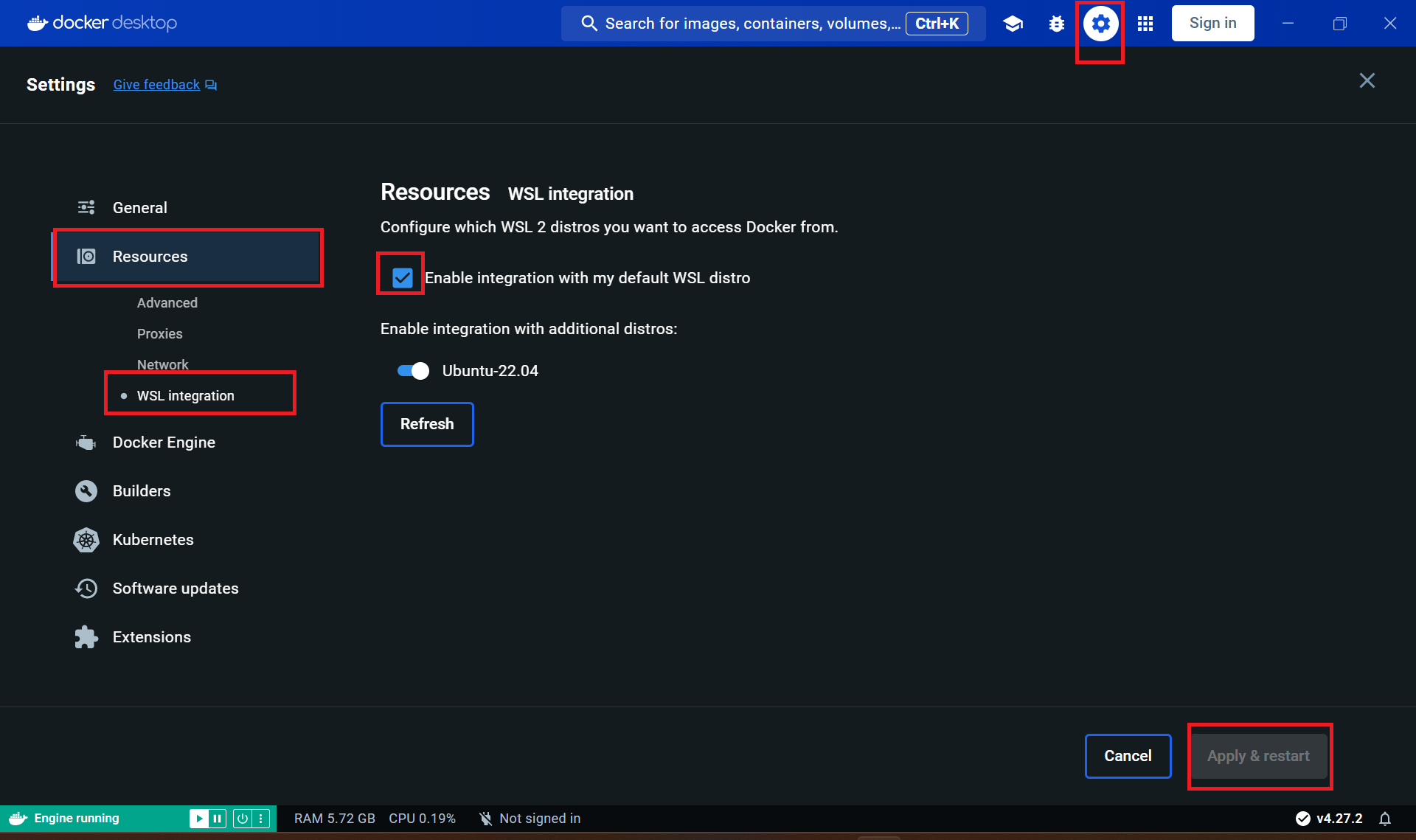
- Enable wsl in docker desktop by moving on this location
Setting > Resources > WSL Inegrationand click on check box and then click onapply & restartbutton and now minimize it.
- Go to your desired destination in your windows then open powershell in that folder using
Shift + right click of mouseand selectOpen Powershell window herefrom options. - Open powershell and type
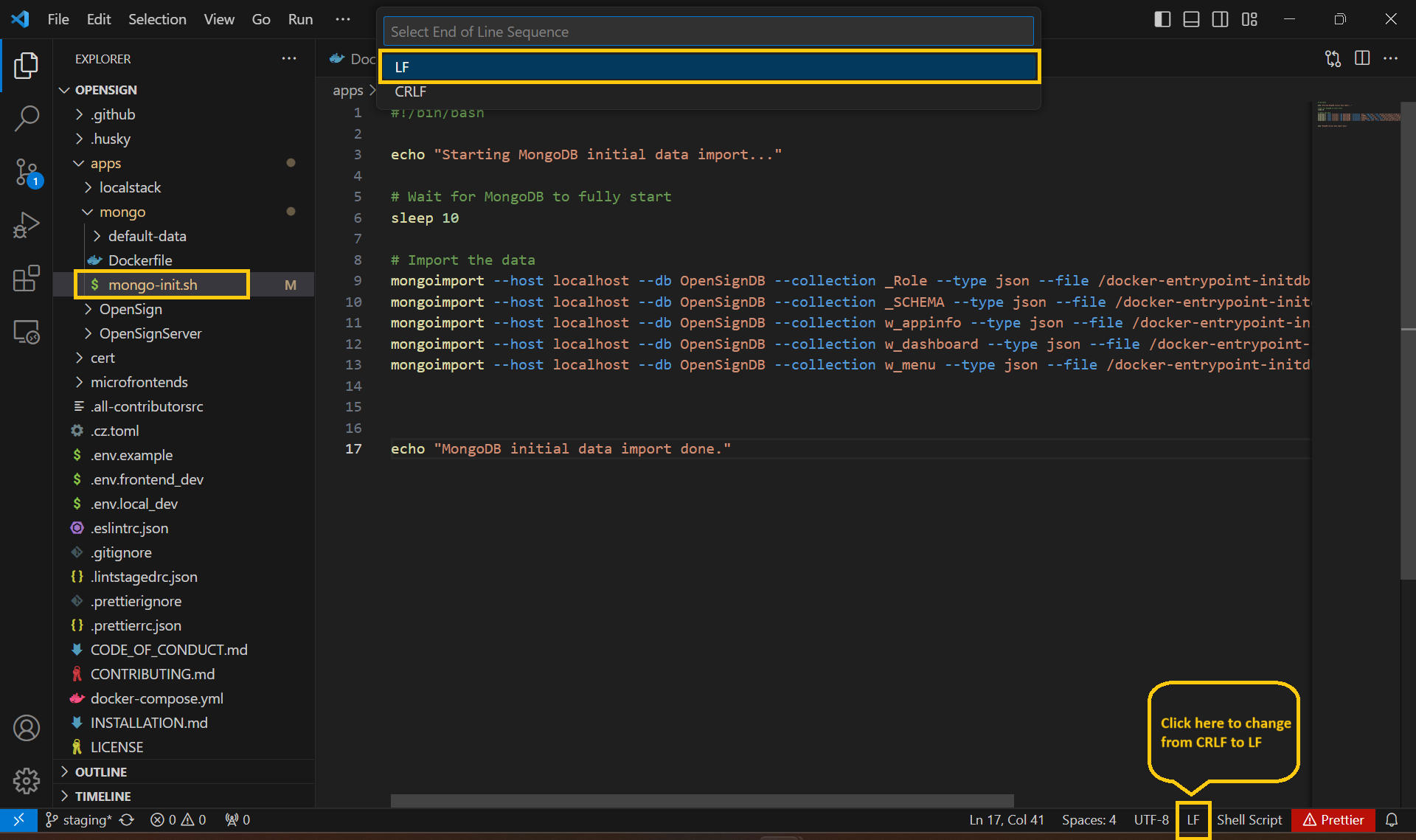
git clone https://github.com/OpenSignLabs/OpenSignand hitEnterit will clone OpenSign project in you local. - Then open OpenSign folder with vs code and go to
apps > mongo > mongo-init.shand change type of this file fromCRLFtoLFand then save this file and close vs code.
- Open ubuntu/WSL terminal and write command to navigate to folder where you have clone OpenSign project for e.g.
cd mnt/c/testing/docker/OpenSignand hitEnter. - Now type command
Make buildand it will start build image for docker, it will take some time to build and start. for more specific steps watch below video.
Setup OpenSign™ with Docker on Localhost
To set up OpenSign™ locally using Docker, the following prerequisites are required:
Environment Varaibles:
| Environment Varibale | Value | Description |
|---|---|---|
| CI | false | Set CI to false while running the app locally |
| PUBLIC_URL | http://localhost:3000 | Set it to the URL form where the app home page will be accessed |
| GENERATE_SOURCEMAP | false | Set it to true if you want to generate the Sourcemap for debugging |
| REACT_APP_SERVERURL | http://localhost:8080/app | Set it to the URL from where APIs will be accessible, for local development it should be localhost:8080/app (use your local port number instead) |
| REACT_APP_APPID | opensignstgn | A 12 character long random app identifier. The value of this should be same as APP_ID which is a variable used by backend API. |
| APP_ID | opensignstgn | A 12 character long random app identifier. The value of this should be same as REACT_APP_APPID which is a variable used by Frontend React App. |
| appName | open_sign_server | Name of the app. It will be visible in the verification emails sent out. |
| MASTER_KEY | XnAadwKxxByMr | A 12 character long random secret key that allows access to all the data. It is used in Parse dashboard config to view all the data in the database. |
| MONGODB_URI | mongodb://host.docker.internal:27017/OpenSignDB | Mongodb URI to connect to |
| PARSE_MOUNT | /app | Path on which APIs should be mounted. Do not change this. This variable shall be removed & value hardcoded in the source code in coming versions. |
| SERVER_URL | http://localhost:8080/app | Set it to the URL from where APIs will be accessible to the NodeJS functions, for local development it should be localhost:8080/app (use your local port number instead) |
| DO_SPACE | DOSPACENAME | Digital ocean space name or AWS S3 bucket name for uploading documents |
| DO_ENDPOINT | ams3.digitaloceanspaces.com | Digital ocean spaces endpoint or AWS S3 endpoint for uploading documents |
| DO_BASEURL | https://DOSPACENAME.ams3.digitaloceanspaces.com | Digital ocean baseurl or AWS S3 base URL |
| DO_ACCESS_KEY_ID | YOUR_S3_ACCESS_ID | Digital ocean spaces access key ID or AWS s3 Access key ID for uploading the docs |
| DO_SECRET_ACCESS_KEY | YOUR_S3_ACCESS_KEY | Digital ocean spaces secret access key or AWS s3 secret access key for uploading the docs |
| DO_REGION | YOUR_S3_REGION | Digital ocean spaces region or AWS s3 region |
| USE_LOCAL | FALSE | To use local file storage to save file |
| MAILGUN_API_KEY | YOUR_MAILGUNAPI_KEY | Mailgun API Key |
| MAILGUN_DOMAIN | YOUR_MAILGUNAPI_DOMAIN | Mailgun API Domain |
| MAILGUN_SENDER | - | Mailgun Sender Mail ID |
| PFX_BASE64 | - | Base64 encoded PFX or p12 document signing certificate file. You can generate base64 encoded self sign certificate using the passphrase. |
| PASS_PHRASE | opensign | Pass phrase of PFX or p12 document signing certificate file. |
Steps to Generate Self Sign Certificate
# execute below command and use passphrase 'opensign'
openssl genrsa -des3 -out ./cert/local_dev.key 2048
openssl req -key ./cert/local_dev.key -new -x509 -days 365 -out ./cert/local_dev.crt
openssl pkcs12 -inkey ./cert/local_dev.key -in ./cert/local_dev.crt -export -out ./cert/local_dev.pfx
openssl base64 -in ./cert/local_dev.pfx -out ./cert/base64_pfx
CORS Configuration
As document storage is delegated to S3-compatible services that reside in a different host than the OpenSign one, document operations (loading, storing, deleting) are subject to Cross-Origin Resource Sharing restriction policies; as a consequence, OpenSign app may fail with (browser console) errors like the following:
Access to fetch at 'https://foo.nyc3.digitaloceanspaces.com/exported_file_4627_0000-00-00T00%3A45%3A43.344Z.pdf'
from origin 'http://localhost:3000' has been blocked by CORS policy: No 'Access-Control-Allow-Origin' header
is present on the requested resource. If an opaque response serves your needs, set the request's mode to
'no-cors' to fetch the resource with CORS disabled.
In order to address this, your document storage system must be instructed to accept requests from other hosts; below the relevant documentation links:
Build Local Environment
Command to build & run project (make sure that you have docker install and running) -
- Execute `make build``
Note: this command only works on linux and mac. If you want to run it in windows use WSL system.