# AI-Suite
**AI-Suite** is intended to provide an **end-to-end path from zero to working
AI workflows and agents** for developers and those who want to enable a local,
private **AI solution**.
It provides an open, curated, pre-configured **Docker Compose** configuration
file along with **Python and Bash shell scripts** that bootstraps fully featured
Local AI Agents, personal AI Assistant and a Low/No Code environment on a self-hosted
platform enabling users to focus on building solutions that employ robust AI workflows
and agents.
Portions of AI-Suite extends [Cole Medin's](https://github.com/coleam00)
[Self-hosted AI Package](https://github.com/coleam00/local-ai-packaged)
which is built on the [n8n-io](https://github.com/n8n-io)
[Self-hosted AI Starter Kit](https://github.com/n8n-io/self-hosted-ai-starter-kit).
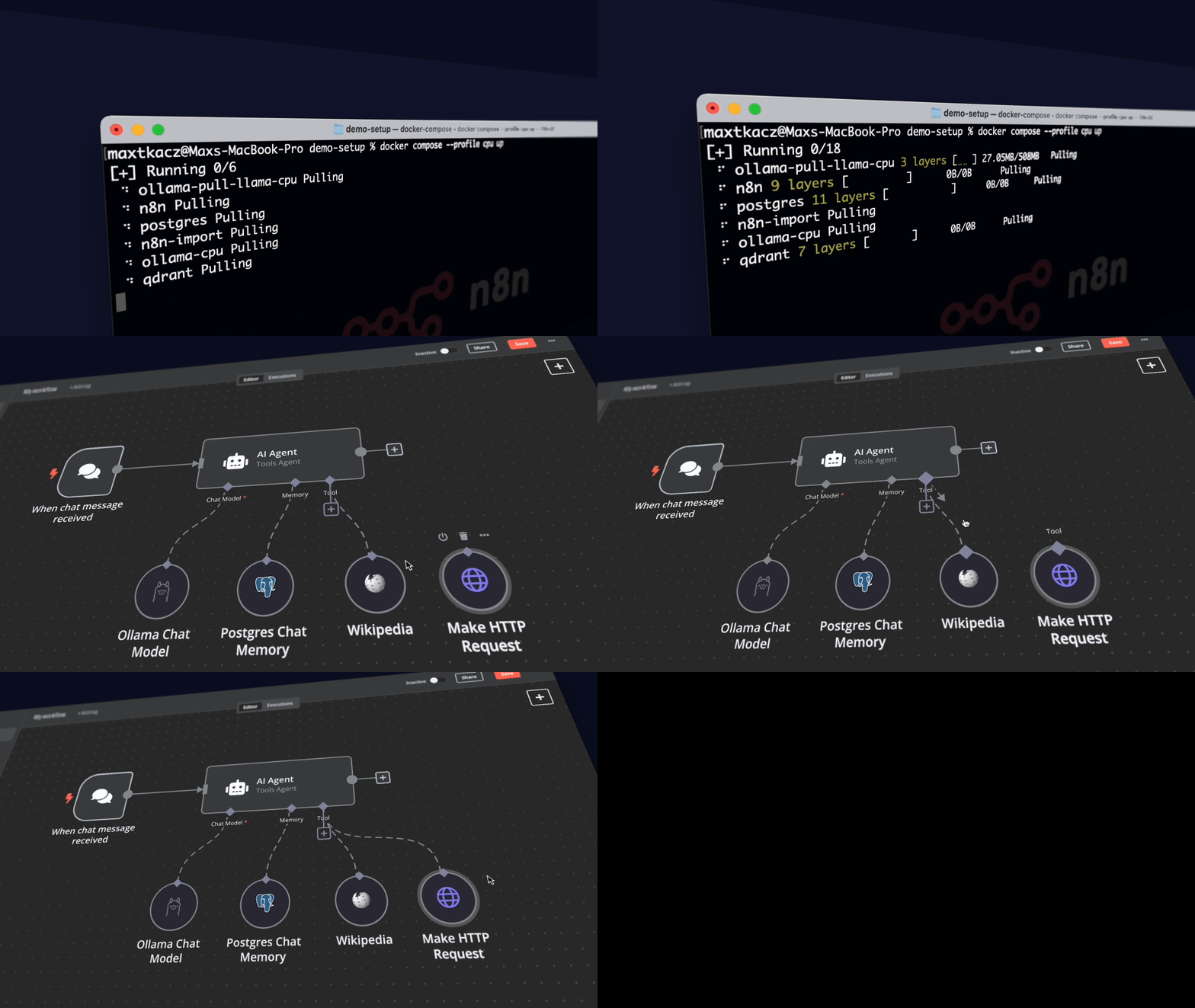
Curated by [Trevor SANDY - https://github.com/trevorsandy](https://github.com/trevorsandy).
## What’s included
✅ [**Self-hosted n8n**](https://n8n.io/) - Automation platform with over 400
integrations and advanced AI components.
✅ [**Self-hosted OpenClaw**](https://openclaw.ai/) - a _personal AI assistant_
you run on your own devices.
✅ [**Open WebUI**](https://openwebui.com/) - ChatGPT-like interface to
privately interact with your local models and N8N agents.
✅ [**OpenCode**](https://opencode.ai/) - open source agent that helps you write
code in your terminal.
✅ [**Ollama**](https://ollama.com/) - Cross-platform LLM platform to install
and run the latest LLMs.
✅ [**LLaMA.cpp**](https://github.com/ggml-org/llama.cpp/) - Cross-platform LLaMA.cpp
HTTP Server platform to install and run the latest LLMs in gguf format.
✅ [**Supabase**](https://supabase.com/) - Open source database as a service,
most widely used database for AI agents.
✅ [**Flowise**](https://flowiseai.com/) - No/low-code AI agent builder that
pairs very well with n8n.
✅ [**Qdrant**](https://qdrant.tech/) - Open source, high performance vector
store with an comprehensive API.
✅ [**PostgreSQL**](https://www.postgresql.org/) - Workhorse of the Data
Engineering world, backend for Langfuse.
✅ [**MCP Gateway**](https://github.com/microsoft/mcp-gateway/) - Reverse proxy
and management layer for MCP servers.
✅ [**Neo4j**](https://neo4j.com/) - Knowledge graph engine that powers tools
like GraphRAG, LightRAG, and Graphiti.
✅ [**Redis (Valkey)**](https://valkey.io/) - High-performance key/value datastore,
supports caching and message queues workloads.
✅ [**SearXNG**](https://searxng.org/) - Open source internet metasearch
engine, aggregates results from up to 229 search services.
✅ [**Langfuse**](https://langfuse.com/) - Open source LLM engineering platform
for agent observability.
✅ [**MinIO**](https://www.min.io/) - High-performance, S3-compatible object
storage solution.
✅ [**ClickHouse**](https://clickhouse.com/) - Open source, database management
system that can generate analytical data reports in real-time.
✅ [**Caddy**](https://caddyserver.com/) - Managed HTTPS/TLS for custom domains.
✅ [**Nginx**](https://nginx.org) - HTTPS/TLS server, reverse proxy, TCP/UDP
proxy server
✅ [**Authelia**](https://www.authelia.com) - Authentication and authorization
server, identity and access management (IAM).
## Prerequisites
System specifications:
- **32GB** RAM recommended (8GB minimum)
- **40GB** free disk space
Before you begin, make sure you have the following software installed:
- [Git](https://git-scm.com/install/) - For easy repository management.
- [Python 3.10+](https://www.python.org/downloads/) - To run the setup script.
- [Node 22.16+](https://nodejs.org/) - For auto-configuration and OpenClaw runtime.
- [Docker 20.10+](https://www.docker.com/products/docker-desktop/) - Required to
setup and run all AI-Suite services.
Docker Compose commands
By default, AI-Suite automatic configuration will validate and, if needed,
install Docker. However, you can also manually install Docker in advance.
If you are using a machine without the `docker compose` application available
by default, run these commands to install Docker compose:
```bash
DOCKER_COMPOSE_VERSION=$(curl -s https://api.github.com/repos/docker/compose/
releases/latest | grep 'tag_name' | cut -d\\" -f4)
sudo curl -L "https://github.com/docker/compose/releases/download/${DOCKER_COMPOSE_VERSION}/docker-compose-linux-x86_64" -o /usr/local/bin docker-compose
sudo chmod +x /usr/local/bin/docker-compose
sudo mkdir -p /usr/local/lib/docker/cli-plugins
sudo ln -s /usr/local/bin/docker-compose /usr/local/lib/docker/cli-plugins/docker-compose
```
Developers may also consider the following optional software:
- [VSCode](https://code.visualstudio.com/download) - Python and Bash shell development.
- [GitKraken](https://www.gitkraken.com/download-b) - Superior Git SCM platform
## Installation
### Step 1: Clone the repository and set environment variables
1. Clone the repository and navigate to the project directory:
```powershell
git clone https://github.com/trevorsandy/ai-suite.git
cd ai-suite
```
2. AI-Suite will automatically configure the settings and environment variables
including generation of secret passwords, tokens and keys needed to successfully
perform _installation_ and _startup_ operations.
However, it is good practice to review your `.env` environment variables before
running _install_ or _update_ taking into account your installation platform
components, specifications and requirements. Particularly pay attention to the
_Ollama_ or _LLaMA.cpp_ (depending on which LLM you are using) configuration
settings and Windows WSL (posix) versus native paths.
Environment variables
Optionally, you can make a copy of `.env.example` renamed to `.env` in the
project directory.
```powershell
cp .env.example .env
```
Credentials
If you install **Supabase**, all credentials will be auto-generated. If you
prefer to manually setup the Supabase credentials, you may use the their
[self-hosting guide](https://supabase.com/docs/guides/self-hosting/docker#securing-your-services).
.env.example file
```ini
# Change this file name to .env after updating it if not using auto-configuration!
############
# Auto-Configuration:
# AI-Suite uses this file as the .env template. You should update default settings
# you wish to set before running install or update using suite_services.py.
#
# If an existing .env is encountered during auto-configuration, defaults from this
# file are overlayed with the existing .env values. This means secrets for variables
# in the existing .env will not be generated by AI-Suite during install or update.
#
# Variables that hold generated secrets will have a specific default value
# format: =generate using [:]
# Examples: N8N_RUNNERS_AUTH_TOKEN=generate using gen_hex:32
# SERVICE_ROLE_KEY=generate using gen_token:service_role_sym
# PROXY_AUTH_PASSWORD=generate using gen_bcrypt
#
# Generating Credentials:
# All secrets are generated when using auto-configure except N8N_ENCRYPTION_KEY
# which can also be set by exporting the environment variable or by placing the
# key=value pair in n8n/.n8n.encryption.key.
# When using your existing n8n encryption key placed in n8n/.n8n.encryption.key,
# be sure to properly terminate the line entry with a new line (hit enter key to
# move your cursor to the next line). Also ensure the file format is LF (Unix)
# and not CRLF (Windows).
#
# OpenSSL: Available by default on Linux/Mac via command `openssl rand -hex 32`
# For Windows, use 'WSL2', 'Git Bash' terminal installed with git or from cmd
# run the command: python -c "import secrets; print(secrets.token_hex(32))"
#
# Password: Use Python command to generate 16-character strong password:
# python3 -c "import secrets;import string; alphabet = string.ascii_letters + string.digits;\
# password = ''.join(secrets.choice(alphabet) for i in range(16));\
# print(password)"
#
# JWT Tokens: Use https://jwtsecrets.com/#generator to generate keys and tokens
# ranging from 8 to 128 characters long.
############
############
# [required for Auto-Configuration] - automatically set when enabled (AC=True)
# Access Control - Proxy, Identity and Access Management configuration
############
# Enable proxy, identity and access auto-configure mode -credentials are auto-generated
AC=True
# Your public/private domain name. An arbitrary name is allowed for private domain
AC_DOMAIN=local.pc
# Configure AI-Suite as a local (private) vs. global (public) installation
AC_LOCAL=True
# The reverse proxy to use (Caddy or Nginx)
AC_PROXY=caddy
# User name for PROXY configuration (alphanumeric characters only)
AC_USERNAME=AISuiteProxyUser
# User password for PROXY configuration
# Keep default '*******' to trigger password prompt during setup
AC_PASSWORD='*******'
# Send confirmation email on user registration - SMTP server required
AC_CONFIRM=False
# Enable Authelia 2FA (two factor authentication) support
AC_WITH_AUTHELIA=True
# User email address for Authelia - required if AC_WITH_AUTHELIA=True
AC_EMAIL=ai-suite-internal@local.pc
# User display name for Authelia - required if AC_WITH_AUTHELIA=True (alphanumeric chars and spaces only)
AC_DISPLAY_NAME='AI Suite Authelia User'
# Use Redis with Authelia - recommended if AC_WITH_AUTHELIA=True and public
AC_WITH_REDIS=False
# Auto-configuration runtime log relative path without filename
AC_LOG_PATH=./access
############
# [required] - automatically set when auto-configure (AC=True) is enabled
# n8n credentials - use OpenSSL `openssl rand -hex 32` for all
############
# Master key used to encrypt sensitive credentials that n8n stores
N8N_ENCRYPTION_KEY=generate using gen_n8ncrypt
# Shared secret between n8n containers and runners sidecars
N8N_RUNNERS_AUTH_TOKEN=generate using gen_hex:32
# Specific JWT secret. By default, n8n generates one on start
N8N_USER_MANAGEMENT_JWT_SECRET=generate using gen_hex:32
############
# [required] - automatically set when auto-configure (AC=True) is enabled
# PostgreSQL database user password - use OpenSSL `openssl rand -hex 16`
############
POSTGRES_PASSWORD=generate using gen_hex:16
# Following settings are required if you enable the respective module.
#
#
#######
#####
#
############
# [required for Supabase] - automatically set when auto-configure (AC=True) is enabled
# Supabase Secrets
# Read these docs for any help: https://supabase.com/docs/guides/self-hosting/docker
# For the JWT Secret and keys, see: https://supabase.com/docs/guides/self-hosting/docker#generate-api-keys
# For the other secrets, see: https://supabase.com/docs/guides/self-hosting/docker#update-secrets
# Note that using special symbols (like '%') can complicate things a bit for your Postgres password.
# If you use special symbols in your Postgres password, you must remember to percent-encode your password later if using the
# Postgres connection string, for example, postgresql://postgres.projectref:p%3Dword@aws-0-us-east-1.pooler.supabase.com:6543/postgres
#
# To enable the new asymmetric key support, uncomment these lines in docker-compose.yml:
# Auth : GOTRUE_JWT_KEYS: ${JWT_KEYS:-[]}
# Realtime: API_JWT_JWKS: ${JWT_JWKS:-{"keys":[]}}
# Storage : JWT_JWKS: ${JWT_JWKS:-{"keys":[]}}
############
# Legacy symmetric HS256 key
JWT_SECRET=generate using gen_key:secret
# Legacy symmetric API key (HS256-signed JWT) for anon role.
ANON_KEY=generate using gen_key:anon_sym
# Legacy symmetric API key (HS256-signed JWT) for service role.
SERVICE_ROLE_KEY=generate using gen_key:service_role_sym
# Pre-signed ES256 JWT "API key" for anon role.
ANON_KEY_ASYMMETRIC=generate using gen_key:anon_asym
# Pre-signed ES256 JWT "API key" for service role.
SERVICE_ROLE_KEY_ASYMMETRIC=generate using gen_key:service_role_asym
# Opaque API key for client-side use (anon role).
SUPABASE_PUBLISHABLE_KEY=generate using gen_key:client
# Opaque API key for server-side use (service_role). Never expose in client code.
SUPABASE_SECRET_KEY=generate using gen_key:server
# JSON array of signing JWKs (EC private + legacy symmetric).
# Used by Auth.
JWT_KEYS=generate using gen_key:keys
# JWKS for token verification (EC public + legacy symmetric).
# Used by PostgREST, Realtime, Storage to verify tokens.
JWT_JWKS=generate using gen_key:jwks
# Encryption key for securing Realtime and Supavisor communications.
SECRET_KEY_BASE=generate using gen_token:48
# Encryption key used by Realtime for sensitive fields in the `_realtime` schema.
REALTIME_DB_ENC_KEY=generate using gen_hex:8
# Encryption key used by Supavisor for storing encrypted configuration.
VAULT_ENC_KEY=generate using gen_hex:16
# Used by Studio to access Postgres via postgres-meta
PG_META_CRYPTO_KEY=generate using gen_token:24
# Used by Kong dashboard user
DASHBOARD_PASSWORD=generate using gen_hex:16
############
# [required for Supabase] - automatically set when auto-configure (AC=True) is enabled
# Logs - Configuration for Supabase Analytics
# Please refer to https://supabase.com/docs/reference/self-hosting-analytics/introduction
############
# Use Supabase docker-compose.logs.yml override to enable Logflare Analytics.
LOGFLARE_ENABLED=false
# API token for log ingestion used by Logflare and Vector.
LOGFLARE_PUBLIC_ACCESS_TOKEN=generate using gen_token:24
# API token used for Logflare management operations. Never expose client-side.
LOGFLARE_PRIVATE_ACCESS_TOKEN=generate using gen_token:24
############
# [required for Supabase S3] - automatically set when auto-configure (AC=True) is enabled
# S3 - Supabase alternative storage
############
# Access key ID (username-like) for accessing the S3 protocol endpoint in Storage.
S3_PROTOCOL_ACCESS_KEY_ID=generate using gen_hex:16
# Secret key (password-like) used with S3_PROTOCOL_ACCESS_KEY_ID.
S3_PROTOCOL_ACCESS_KEY_SECRET=generate using gen_hex:32
############
# [required for Supabase and Langfuse] - automatically set when auto-configure (AC=True) is enabled
# MinIO - authentication configuration - use OpenSSL `openssl rand -hex 16`
############
# Root administrator password for the RustFS or MinIO server.
MINIO_ROOT_PASSWORD=generate using gen_hex:16
############
# [required for Flowise] - automatically set when auto-configure (AC=True) is enabled
# Flowise - authentication configuration - use OpenSSL `openssl rand -hex 16`
############
FLOWISE_PASSWORD=generate using gen_hex:16
############
# [required for Neo4j] - automatically set when auto-configure (AC=True) is enabled
# Neo4j admin username and password
# The admin username must remain "neo4j".
# Replace "password" with your chosen password.
# Keep the "/" as a separator between the two.
############
NEO4J_PASSWORD=generate using gen_hex:16
NEO4J_AUTH=neo4j/${NEO4J_PASSWORD}
############
# [required for Langfuse] - automatically set when auto-configure (AC=True) is enabled
# Langfuse credentials
# Each of the secret keys you can set to whatever you want, just make it secure!
# For salt, secret and encryption key, use OpenSSL command specified above
############
CLICKHOUSE_PASSWORD=generate using gen_hex:16
LANGFUSE_SALT=generate using gen_hex:16
NEXTAUTH_SECRET=generate using gen_token:32
ENCRYPTION_KEY=generate using gen_hex:32
# Following settings are required for production.
#
#
#######
#####
#
############
# [required for production if using Authelia]
# Automatically set when auto-configure (AC=True) is enabled
# Authelia Config
############
AUTHELIA_SESSION_SECRET=generate using gen_hex:32
AUTHELIA_STORAGE_ENCRYPTION_KEY=generate using gen_hex:32
AUTHELIA_IDENTITY_VALIDATION_RESET_PASSWORD_JWT_SECRET=generate using gen_hex:32
AUTHELIA_SCHEMA=authelia
############
# [required for production if using TLS Proxy]
# Automatically set when auto-configure (AC=True) is enabled
# Config for optional Caddy or Nginx reverse proxy with Let's Encrypt
############
# Generated bcrypt password for basic authentication without Authelia
PROXY_AUTH_PASSWORD=generate using gen_bcrypt
PROXY_AUTH_USERNAME=AISuiteProxyUser
############
# [required for production if using Caddy]
# Automatically set when auto-configure (AC=True) is enabled
# Caddy Config
# By default listen on https://localhost:[service port] and don't use an email for SSL
# To change this for production:
# Uncomment all of these environment variables for the services you want exposed
# Note that you might not want to expose Ollama or SearXNG since they aren't secured by default
############
# Domain name for the proxy (must point to your server)
PROXY_DOMAIN=${AC_DOMAIN}
# WEBUI_HOSTNAME=openwebui.${AC_DOMAIN}
# N8N_HOSTNAME=n8n.${AC_DOMAIN}
# OPENCLAW_HOSTNAME=openclaw.${AC_DOMAIN}
# FLOWISE_HOSTNAME=flowise.${AC_DOMAIN}
# SUPABASE_HOSTNAME=supabase.${AC_DOMAIN}
# LANGFUSE_HOSTNAME=langfuse.${AC_DOMAIN}
# OLLAMA_HOSTNAME=ollama.${AC_DOMAIN}
# LLAMACPP_HOSTNAME=llamacpp.${AC_DOMAIN}
# SEARXNG_HOSTNAME=searxng.${AC_DOMAIN}
# NEO4J_HOSTNAME=neo4j.${AC_DOMAIN}
# WEBHOOK_URL=https:n8n.${AC_DOMAIN}
# LETSENCRYPT_EMAIL=${AC_EMAIL}
############
# [required for production if using Nginx]
# Automatically set when auto-configure (AC=True) is enabled
# Ngnix Config
############
NGINX_SERVER_NAME=generated-primary-hostname
CERTBOT_EMAIL=ai-suite-internal@local.pc
# This must be set to 0 for public installation
USE_LOCAL_CA=1
# Everything below this point is optional.
# Default values will suffice unless you need more features/customization.
...
```
OpenClaw setup .env configuration
```ini
############
# OpenClaw - Setup
############
# Set to specific release tag, 'commit' for latest commit or empty for latest release
OPENCLAW_RELEASE=''
# Set to 1 to enable onboarding during setup
OPENCLAW_ONBOARDING=0
# Set to 0 for default Docker setup
OPENCLAW_DOCKER_SANDBOX=1
# Set to 0 for pre-built image download when sandbox is disabled
OPENCLAW_DOCKER_LOCAL_IMAGE=1
# Preserve locally updated files when performing clone operation
OPENCLAW_KEEP_LOCAL_UPDATES=0
```
Ollama .env configuration
```ini
############
# Ollama - LLM
############
OLLAMA_PORT=11434
# Docker backend connect when running Ollama in the Host:
#OLLAMA_HOST=host.docker.internal:${OLLAMA_PORT}
# When accessing Ollama from the Host:
OLLAMA_HOST=localhost:${OLLAMA_PORT}
# When running Ollama in Docker:
#OLLAMA_HOST=ollama:${OLLAMA_PORT}
# Tuning
OLLAMA_CONTEXT_LENGTH=4096
OLLAMA_FLASH_ATTENTION=1
OLLAMA_KV_CACHE_TYPE=q4_0
OLLAMA_MAX_LOADED_MODELS=2
# Models
OLLAMA_DEFAULT_MODEL=llama3.2
OLLAMA_SUPPLEMENT_MODEL=qwen3:8b
OLLAMA_EMBEDDING_MODEL=nomic-embed-text
# Ollama server arguments - use ollama serve --help for available 'serve' arguments
OLLAMA_SERVER_ARGS=serve
############
# LLAMA (Ollama/LLaMA.cpp) - Shared environment variables
############
# Application Installation path
# Set for LLaMA.cpp or if using custom Ollama installation path
# e.g. LLAMA_PATH=~\Projects\ai-suite\llama.cpp\bin\llama-server.exe
# Omit '' to return 'False' when queried
LLAMA_PATH=
```
LLaMA.cpp .env configuration
```ini
############
# LLaMA.cpp - LLM
############
LLAMA_ARG_PORT=8040
# Docker backend connect when running LLaMA.cpp in the Host:
#LLAMA_ARG_HOST=host.docker.internal
# When running LLaMA.cpp in Docker:
LLAMA_ARG_HOST=0.0.0.0
# Backend connect
LLAMACPP_HOST=${LLAMA_ARG_HOST}:${LLAMA_ARG_PORT}
# Model names - Dictionary keys for model download identifier values below.
# Keys, and values below include an empty slot for a user-defined model
LLAMACPP_MODEL_GEMMA=gemma-4b # Default
LLAMACPP_MODEL_DEEPSEEK=deepseek-7b
LLAMACPP_MODEL_MISTRAL=mistral-7b
LLAMACPP_MODEL_LLAMA=llama-8b
LLAMACPP_MODEL_QWEN=qwen-8b
LLAMACPP_MODEL_USER=
# Model download identifier - Dictionary values for model keys above.
# Model selected by 'best match' to LLAMACPP_MODEL_NAME
# To specify a local model, change '-hf' to '-m' in LLAMACPP_SERVER_ARGS below
# and replace the respective model id value below with 'models/'.
LLAMACPP_MODEL_GEMMA_ID=ggml-org/gemma-3-4b-it-GGUF
LLAMACPP_MODEL_DEEPSEEK_ID=mradermacher/DeepSeek-R1-Distill-Qwen-7B-Uncensored-i1-GGUF
LLAMACPP_MODEL_MISTRAL_ID=bartowski/mistralai_Ministral-3-8B-Instruct-2512-GGUF
LLAMACPP_MODEL_LLAMA_ID=bartowski/allura-forge_Llama-3.3-8B-Instruct-GGUF
LLAMACPP_MODEL_QWEN_ID=bartowski/Qwen_Qwen3-8B-GGUF
LLAMACPP_MODEL_USER_ID=
# Model and paths
LLAMACPP_PATH=llama.cpp
LLAMACPP_DEFAULT_MODEL=${LLAMACPP_MODEL_GEMMA} # IMPORTANT: should reasonably match dictionary model name above.
LLAMACPP_MODELS_DIR=${LLAMACPP_PATH}/models
LLAMACPP_MODEL_PATH=${LLAMACPP_MODELS_DIR}/${LLAMACPP_DEFAULT_MODEL}
# Model management - automatically download specified model if not downloaded.
LLAMA_ARG_HF_REPO=${LLAMACPP_MODEL_GEMMA_ID}
# Tuning
LLAMA_ARG_CTX_SIZE=4096
LLAMA_ARG_FLASH_ATTN=1
LLAMA_ARG_N_GPU_LAYERS=0
LLAMA_ARG_THREADS=4
LLAMA_ARG_MODELS_MAX=4
# LLaMA.cpp server arguments - use 'llama-server --help' for available arguments
# To specify a local model, append '-m' or '––model'.
# To auto-download model (if not already downloaded) and if LLAMA_ARG_HF_REPO is
# not used (commented), append '-hf' or '--hf-file'.
LLAMACPP_SERVER_ARGS=--jinja
```
Shared Ollama and LLaMA.cpp .env configuration
```ini
############
# LLAMA (Ollama/LLaMA.cpp) - Shared environment variables
############
# Application Installation path
# Set for LLaMA.cpp or if using custom Ollama installation path
# e.g. LLAMA_PATH=~\Projects\ai-suite\llama.cpp\bin\llama-server.exe
# Omit '' to return 'False' when queried
LLAMA_PATH=
# Conecting to LLAMA using OpenAI API connection
# When running Ollama: ${OLLAMA_HOST}
# When running LLaMA.cpp: ${LLAMACPP_HOST}
OPENAI_API_BASE_URL=${OLLAMA_HOST}
#OPENAI_API_KEY - OpenAI API key declared below at Studio
```
You may also choose to generate the AI-Suite requirements.txt file and install
missing Python modules to ensure your environment meets the Python module dependencies.
Generate and install requirements.txt
Optionally, setup a Python virtual environment under `ai-suite`.
```python
pip install -U virtualenv
```
Unix
```sh
python3 -m venv .venv
source ./.venv/bin/activate
```
Windows
```cmd
python -m venv .venv
```
Powershell
```powershell
.venv/Scripts/activate.ps1
```
Console
```cmd
.venv\Scripts\activate
```
Then run the following commands from `ai-suite`:
```powershell
pip install pipreqs
pipreqs --encoding=utf8 .
pip install -r requirements.txt
```
> [!IMPORTANT]
> Make sure to generate secure random values for all secrets. Never use the
> example values in production.
---
### Step 2: Run suite_services.py
**AI-Suite** uses the `suite_services.py` script for the _installation_ command
that handles the AI-Suite functional module selection, **LLAMA** (_Ollama_/_LLaMA.cpp_)
CPU/GPU configuration, and starting Supabase, OpenClaw and Open WebUI Filesystem
when specified.
Additionally, this script is used to perform _operational_ actions such as stopping
or pausing the running suite stack, OpenClaw clawdock operations and updating container
images.
Command syntax:
```powershell
suite_services.py --profile --environment --operation
--log
```
> [!NOTE]
> The following example commands will use the `n8n` and `OpenCode` functional
> modules. Simply substitute these modules for your desired options if you elect
> to use these examples in your environment.
---
#### The _profile_ command arguments
Both installation and operation commands utilize the optional `--profile`
arguments to specify which AI-Suite functional modules and which **LLAMA** CPU/GPU
configuration to use. When no functional profile argument is specified, the
default functional module `open-webui` is used, Likewise, if no CPU/GPU configuration
profile argument is specified, it is assumed LLAMA is being run from the **Host**.
**Multiple profile arguments for functional modules are supported**.
`suite_services.py` `--profile` functional module arguments
| Argument | Functional Module |
| ----------------: | -----------------------------------------------: |
| `n8n` | n8n - automation platform |
| `openclaw` | OpenClaw - your own personal AI assistant |
| `opencode` | OpenCode - low-code, no-code agent |
| `open-webui` | Open WebUI - chatbot interface |
| `open-webui-mcpo` | Open WebUI MCPO - MCP to OpenAPI translator |
| `open-webui-pipe` | Open WebUI Pipelines - agent tools and functions |
| `flowise` | Flowise - complementary agent builder |
| `supabase` | Supabase - alternative database |
| `searxng` | SearXNG - internet metasearch |
| `langfuse` | Langfuse - agent observability platform |
| `neo4j` | Neo4j - knowledge graph |
| `caddy` | Caddy - managed https/tls server |
| `n8n-all` | n8n - complete bundle |
| `open-webui-all` | Open WebUI - complete bundle |
| `ai-all` | AI-Suite full stack - all modules |
`suite_services.py` `--profile` LLAMA CPU/GPU in Docker argument:
| Argument | LLAMA CPU/GPU |
| ---------------: | ----------------------------: |
| `cpu` | Ollama - run on CPU |
| `gpu-nvidia` | Ollama - run on Nvidia GPU |
| `gpu-amd` | Ollama - run on AMD GPU |
| `cpp-cpu` | LLaMA.cpp - run on CPU |
| `cpp-gpu-nvidia` | LLaMA.cpp - run on Nvidia GPU |
| `cpp-gpu-amd` | LLaMA.cpp - run on AMD GPU |
Example command:
```powershell
# Ollama
python suite_services.py --profile n8n opencode gpu-nvidia
# LLaMA.cpp
python suite_services.py --profile n8n opencode cpp-gpu-nvidia
```
`suite_services.py` `--profile` LLAMA running on Host argument:
| Argument | LLAMA CPU/GPU |
| ----------: | -----------------------------: |
| `ollama` | Ollama - run on Host (Default) |
| `llama.cpp` | LLaMA.cpp - run on Host |
Example command:
```powershell
# Ollama - As the default LLAMA option, the argument is not required
python suite_services.py --profile n8n opencode
# LLaMA.cpp
python suite_services.py --profile n8n opencode llama.cpp
```
---
If you intend to install **Supabase**, before running `suite_services.py`, setup
the Supabase environment variables using their [self-hosting guide](https://supabase.com/docs/guides/self-hosting/docker#securing-your-services).
#### For Docker LLAMA with Nvidia GPU users
```powershell
# Ollama
python suite_services.py --profile gpu-nvidia n8n opencode
# LLaMA.cpp
python suite_services.py --profile cpp-gpu-nvidia n8n opencode
```
> [!NOTE]
> If you have not used your Nvidia GPU with Docker before, please follow the
> [Ollama Docker instructions](https://github.com/ollama/ollama/blob/main/docs/docker.mdx).
> [LLaMA.cpp Docker instructions](https://github.com/ggml-org/llama.cpp/blob/master/docs/docker.md)
#### For Docker LLAMA with AMD GPU users
```powershell
# Ollama
python suite_services.py --profile gpu-amd n8n opencode
# LLaMA.cpp
python suite_services.py --profile cpp-gpu-amd n8n opencode
```
#### For LLAMA on Mac running Apple Silicon users
If you're using a Mac with an M1 or newer processor, you cannot expose your GPU
to the Docker instance, unfortunately. There are two options in this case:
1. Run ai-suite fully on CPU:
```powershell
# Ollama
python suite_services.py --profile cpu n8n opencode
# LLaMA.cpp
python suite_services.py --profile cpp-cpu n8n opencode
```
2. Run LLAMA on your Host for faster inference, and connect to that from the
n8n instance:
```powershell
# Ollama
python suite_services.py --profile n8n opencode
# LLaMA.cpp
python suite_services.py --profile n8n opencode llama.cpp
```
If you want to run LLAMA on your Mac, check the [Ollama homepage](https://ollama.com/)
or [LLaMA.cpp install](https://github.com/ggml-org/llama.cpp/blob/master/docs/install.md)
for installation instructions.
#### For LLAMA running on the Host users
If you're running LLAMA on your Host (not in Docker), the `suite_services.py`
script will automatically set your `OLLAMA_HOST`/`LLAMA_ARG_HOST` environment
variable in the `.env` file. Using interpolation, these settings will also be set
for the n8n service configuration.
To manually configure the **Ollama** settings and update the x-n8n section in
your `.env` file:
Manual Ollama .env Host configuration
```ini
OLLAMA_HOST=host.docker.internal:11434
#OLLAMA_HOST=ollama:11434
# ... other configurations ...
# When running Ollama in the Host and Open WebUI in Docker:
OLLAMA_BASE_URL=http://host.docker.internal:11434
#OLLAMA_BASE_URL=http://localhost:11434
```
... or youe Docker Compose file:
```yaml
x-n8n: &service-n8n
# ... other configurations ...
environment:
# ... other environment variables ...
- OLLAMA_HOST=host.docker.internal:11434
```
The `suite_services.py` script will similarly set the `OPENAI_API_BASE_URL`
environment variable to use the _HOST_ and _PORT_ of the selected LLAMA LLM
(_Ollama_/_LLaMA.cpp_). This option will enable n8n backend connections to
**LLaMA.cpp**.
Manual LLaMA.cpp .env Host configuration
```ini
LLAMA_ARG_PORT=8040
# When running LLaMA.cpp in the host:
#LLAMA_ARG_HOST=host.docker.internal
# When running LLaMA.cpp in Docker:
#LLAMA_ARG_HOST=0.0.0.0
LLAMA_ARG_HOST='host.docker.internal'
# Backend connect
LLAMACPP_HOST=${LLAMA_ARG_HOST}:${LLAMA_ARG_PORT}
# ... other configurations ...
# Conecting to LLAMA using OpenAI API connection
# When running Ollama: ${OLLAMA_HOST}
# When running LLaMA.cpp: ${LLAMA_ARG_HOST}:${LLAMA_ARG_PORT}
OPENAI_API_BASE_URL='${LLAMACPP_HOST}'
```
#### For everyone else (...using CPU)
```powershell
# Ollama
python suite_services.py --profile n8n opencode cpu
# LLaMA.cpp
python suite_services.py --profile n8n opencode cpp-cpu
```
> [!NOTE]
> Script examples beyond this point will use _Ollama_ or _LLaMA.cpp_ interchangeably.
---
#### The _operation_ command argument
There are also operation commands that _start_, _stop_, _stop-llama_, _pause_,
_unpause_, _update_ and _install_ the AI-Suite services using the optional
`--operation` argument. A **LLAMA** (_Ollama_/_LLaMA.cpp_) check is performed when
it is assumed LLAMA is running from the Host. If **LLAMA** is determined to be
installed but not running, an attempt to launch the Ollama/LLaMA.cpp service
is executed on _install_, _start_ and _unpause_. The check will also attempt to
_stop_ the running LLAMA service (in addition to stopping the AI-Suite services)
when the _stop-llama_ operational command argument is specified.
`suite_services.py` ... `--operation` argument:
| Argument | Operation |
| -------------: | -----------------------------------------------------------------: |
| `start` | Start - start the previously stopped, specified profile containers |
| `stop` | Stop - shut down the specified profile containers |
| `stop-llama` | Stop - perform `stop` and shut down Ollama/LLaMA.cpp on Host |
| `pause` | Pause - pause the specified profile containers |
| `unpause` | Unpause - unpause the previously paused profile containers |
| `backup-data` | Backup Data - backup volume mount data to backup file |
| `restore-data` | Restore Data - restore volume mount data from backup file |
Example command:
```powershell
# Ollama
python suite_services.py --profile n8n opencode gpu-nvidia --operation stop
# LLaMA.cpp
python suite_services.py --profile n8n opencode llama.cpp --operation stop-llama
```
**OpenClaw** operation commands are available using _clawdock_.
`suite_services.py` `--operation` clawdock argument
> [!IMPORTANT]
> For Docker setup, the Gateway bearer token is no longer exposed in setup logs
> or printed in follow-up commands output. The token is stored in `/.env`
> and `~/.openclaw/openclaw.json`. For AI-Suite, `` is `./openclaw/`.
- **Basic Operations**
| Argument | Operation |
| -----------------: | ------------------------------: |
| `clawdock-start` | Start the gateway |
| `clawdock-stop` | Stop the gateway |
| `clawdock-restart` | Restart the gateway |
| `clawdock-status` | Check container status |
| `clawdock-logs` | View live logs (follows output) |
- **Container Access**
| Command | Description |
| ------------------------- | ---------------------------------------------- |
| `clawdock-shell` | Interactive shell inside the gateway container |
| `clawdock-cli ` | Run OpenClaw CLI commands |
| `clawdock-exec ` | Execute arbitrary commands in the container |
- **Web UI & Devices**
| Command | Description |
| ----------------------- | ------------------------------------------ |
| `clawdock-dashboard` | Open web UI in browser with authentication |
| `clawdock-devices` | List device pairing requests |
| `clawdock-approve ` | Approve a device pairing request |
- **Setup & Configuration**
| Command | Description |
| -------------------- | ------------------------------------------------- |
| `clawdock-fix-token` | Configure gateway authentication token (run once) |
- **Maintenance**
| Command | Description |
| ------------------ | ----------------------------------------------------- |
| `clawdock-update` | Pull latest, rebuild image, and restart (one command) |
| `clawdock-rebuild` | Rebuild the Docker image only |
| `clawdock-clean` | Remove all containers and volumes (destructive!) |
- **Utilities**
| Command | Description |
| ---------------------- | ----------------------------------------- |
| `clawdock-health` | Run gateway health check |
| `clawdock-token` | Display the gateway authentication token |
| `clawdock-cd` | Jump to the OpenClaw project directory |
| `clawdock-config` | Open the OpenClaw config directory |
| `clawdock-show-config` | Print config files with redacted values |
| `clawdock-workspace` | Open the workspace directory |
| `clawdock-help` | Show all available commands with examples |
> [!NOTE]
> Clawdoc commands that require an argument, for example `clawdock-approve `,
> are executed in two operations. First, enter only the clawdock command:
> `suite_services.py --operation clawdock-approve`. Second AI-Suite will generate
> a prompt for the argument or command: `Enter a device pairing: ` which you
> will then enter.
Example command:
```powershell
python suite_services.py --operation clawdock-status
```
OpenClaw guide (auth, pairing, channels): [Getting started](https://docs.openclaw.ai/start/getting-started)
---
#### The _environment_ command argument
The `--environment` command allows the installation to be defined as _private_
(default) or _public_. A public install restricts the communication ports exposed
to the network.
The `suite_services.py` script supports the `private` (default) and `public`
environment argument:
- **private:** you are deploying the stack in a safe environment, all AI-Suite
ports are accessible
- **public:** the stack is deployed in a public environment, all AI-Suite ports
except _80_ and _443_ are closed
`suite_services.py` ... `--environment` argument:
| Argument | Scope |
| --------: | --------------: |
| `private` | Private network |
| `public` | Public network |
Example command:
The AI-Suite stack initialized with...
```powershell
python suite_services.py --profile n8n opencode cpp-cpu --environment private
```
is equal to being initialized with:
```powershell
python suite_services.py --profile gpu-nvidia
```
#### The _log_ command argument
The `suite_services.py` script enables stream (console) logging and setting the
logging level. File logging is always enabled at **DEBUG** and is not affected
by this argument. The default console logging level is **INFO**.
environment argument:
`suite_services.py` ... `--log` argument:
| Argument | Scope |
| ---------: | ----------------------------: |
| `OFF` | Console logging is disabled |
| `DEBUG` | Debug logging level |
| `INFO` | Standard output logging level |
| `WARNING` | Warning logging level |
| `ERROR` | Error logging level |
| `CRITICAL` | Critical logging level |
Example command:
```powershell
python suite_services.py --profile n8n opencode cpp-cpu --operation update --log DEBUG
```
#### Auto-configuration, HTTPS Reverse Proxy and Access Management
By default, _auto-configure_ will generate secrets, the .env file and Docker
compose file updates for **AI-Suite modules**, including **Supabase** and **OpenClaw**.
Additionally, **AI-Suite** will automatically configure **Caddy** (Default) or
**Nginx** HTTPS reverse proxy and **Authelia** 2FA (Two Factor Authentication)
IAM (Identity and Access Management) on install or update. There is no `--profile`
argument to enable automatic configuration as is the default behaviour.
However, you can disable automatic configuration using `--profile` argument
`no-auto-config` or `manual-configuration`.
`suite_services.py` `--profile` No auto-configure or manual configuration argument:
| Argument | Behaviour |
| ---------------------: | ----------------------------------------: |
| `no-auto-config` | Override auto-configure AI-Suite settings |
| `manual-configuration` | Override auto-configure AI-Suite settings |
Example command:
```powershell
python suite_services.py --profile ai-all no-auto-config --operation update
```
---
## Deploying to the Cloud
### Prerequisite
- Linux machine (preferably Unbuntu) with Nano, Git, and Docker installed
### Extra steps
Before running the above commands to pull the repo and install everything:
> [!WARNING]
> ufw does not shield ports published by Docker, because the iptables rules
> configured by Docker are analyzed before those configured by ufw. There is a
> solution to change this behavior, but that is out of scope for this project.
> Just make sure that all traffic runs through the Caddy service via port _443_.
> Port _80_ should only be used to redirect to port _443_.
1. Run the commands as root to open up the necessary ports:
```bash
ufw enable
ufw allow 80 && ufw allow 443
ufw reload
```
2. Run the `suite_services.py` script with the environment argument **public**
to indicate you are going to run the package in a public environment. The
script will make sure that all ports, except for _80_ and _443_, are closed
down, e.g.
```bash
python3 suite_services.py --profile gpu-nvidia --environment public
```
3. Set up A records for your DNS provider to point your subdomains you'll set
up in the `.env` file for Caddy to the IP address of your cloud instance.
For example, A record to point n8n to [cloud instance IP] for n8n.yourdomain.com
> [!NOTE]
> If you are using a cloud machine without the "docker compose" command
> available by default such as a Ubuntu GPU instance on DigitalOcean, run these
> commands before running suite_services.py:
Docker Compose setup commands
```bash
DOCKER_COMPOSE_VERSION=$(curl -s https://api.github.com/repos/docker/compose/releases/latest | grep 'tag_name' | cut -d\\" -f4)
sudo curl -L "https://github.com/docker/compose/releases/download/${DOCKER_COMPOSE_VERSION}/docker-compose-linux-x86_64" -o /usr/local/bin/docker-compose
sudo chmod +x /usr/local/bin/docker-compose
sudo mkdir -p /usr/local/lib/docker/cli-plugins
sudo ln -s /usr/local/bin/docker-compose /usr/local/lib/docker/cli-plugins/docker-compose
```
## ⚡️ Quick start and usage
All components of the self-hosted **AI-Suite**, except if running LLAMA from your
host, is installed through `suite_services.py` and managed through a Docker Compose
file pre-configured with network and disk so there isn’t much else you need to
install. After completing the installation steps above, follow the steps below
to get started. First, start with **n8n**.
Use the following settings to confirm or upate **n8n Credentials**.
- Local Ollama service: base URL (n8n config),
(browser)
- Local LLaMA.cpp service: base URL (n8n config),
(browser)
- Local QdrantApi database: base URL (n8n config),
(browser)
- Postgres account: use _POSTGRES_HOST_, _POSTGRES_USER_, and _POSTGRES_PASSWORD_
from your `.env` file.
- Google Drive: This credential is optional. Follow [this guide from n8n](https://docs.n8n.io/integrations/builtin/credentials/google/).
-
Full list of AI-Suite service endpoints:
| Service | Container | Docker connect | Host connect |
| ----------------------: | --------------------------------: | -------------------------------------------: | --------------------------------: |
| `n8n` | n8n:5678 | | |
| `openclaw-gateway` | openclaw-gateway:18789 | | |
| `openclaw-cli` | openclaw-cli | | |
| `Open WebUI` | open-webui:8080/ | | |
| `Opencode` | opencode | | ./opencode/run_opencode_docker.py |
| `Flowise` | flowise:3001/ | | |
| `Open webUI MCPO` | open-webui-mcpo:8090/ | | |
| `Ollama` | ollama:11434/ | | |
| `LLaMA.cpp` | llamacpp:8040 | | |
| `QDrant` | qdrant:6333/dashboard | | |
| `Subabase` | supabase-kong:8000 | | |
| `Postgres` | postgres:5432 | | |
| `MCP Gateway` | mcp-gateway:8060/ | | |
| `Open webUI Filesystem` | open-webui-filesystem:8091/docs | | |
| `Redis` | redis:6379/ | | |
| `MinIO` | minio:9001/ | | |
| `Langfuse Web` | langfuse-web:3000/ | | |
| `Langfuse Worker` | langfuse-worker:3030/ | | |
| `Logflare` | supabase-analytics:4000/dashboard | | |
| `ClickHouse` | clickhouse:8123/ | | |
| `SearXNG` | searxng:8081/ | | |
| `Neo4j` | neo4j:7473/ | | |
| `Caddy` | caddy:443/ | | |
> [!IMPORTANT]
> For **Supabase**, _POSTGRES_HOST_ is 'db' since that is the name of the
> service running Supabase.
> [!NOTE]
> If you are running LLAMA on your Host, for the credential _Local Ollama
> service_, set the base URL to and set
> _Local QdrantApi database_ to . For a
> LLaMA.cpp service, you can create a _Local LLaMA service_ node using the
> connection credential or simply point
> the _Local Ollama service_ to this credential.
>
> Don't use _localhost_ for the redirect URI, instead, use another domain.
> It will still work!
> Alternatively, you can set up [local file triggers](https://docs.n8n.io/integrations/builtin/core-nodes/n8n-nodes-base.localfiletrigger/).
1. Open in your browser to initialize and set up n8n.
You’ll only have to set your admin login credentials once. You are NOT creating
an account with n8n in the setup here, it is only a local account for your
instance!
- Go to to configure credentials.
- Click on **Local QdrantApi database** and set the base URL as specified above.
- Click on **Local Ollama/LLaMA service** and set the base URL as specified above.
- Click on **Create credential**, enter _Postgres_ in the search field and
follow the subsequent dialogs to setup the _Postgres account_ as specified
above.
2. Open the [Demo workflow](http://localhost:5678/workflow/srOnR8PAY3u4RSwb) and
confirm the credentials for _Local Ollama/LLaMA service_ is properly configured.
3. Select **Test workflow** to confirm the workflow is properly configured.
If this is the first time you’re running the workflow, you may need to wait
until Ollama finishes downloading the specified model. You can inspect the
docker console logs to check on the progress.
4. Toggle the _Demo workflow_ as active and treat the _RAG AI Agent_ workflows.
Configure additional n8n workflows as desired:
[V1 Local RAG AI Agent]()
[V2 Qdrant RAG AI Agent]()
[V3 Local Agentic RAG AI Agent]()
[V4 Local_Get_Postgres_Tables]()
5. Next, configure **Open WebUI**. Open in your browser
to initialize and set up Open WebUI. You’ll only have to set your admin login
credentials once. You are NOT creating an account with Open WebUI in the setup
here, it is only a local account for your instance!
6. Go to **Workspace → Functions** to setup the n8n Pipes (Pipeline) function.
This function will enable integration with n8n as an entry in your model dropdown
list.
- Click on **New Function**
- Enter _n8n Pipeline_ at **Function Name** and **Function ID** will auto-populate
with _n8n_Pipeline_
- Enter _An optimized streaming-enabled pipeline for interacting with n8n workflows_
in **Description**
- Copy the _n8n_Pipeline function_ code at [n8n.py](https://github.com/owndev/Open-WebUI-Functions/blob/main/pipelines/n8n/n8n.py)
(or the downloaded instance at `./open-webui/functions/owndev/pipelines/n8n/n8n.py`)
and paste it into the edit dialog.
7. Copy the webhook URL from the _n8n_Pipeline_ function set in step 6.
8. Click on the gear icon and set the n8n_url to the webhook URL you copied
in a previous step.
9. Toggle the function on and now it will be available in your model dropdown
in the top left.
To access **n8n**, visit from your browser.
To access **OpenClaw**, run `suite_services.py --operation clawdock-status`
To access **Open WebUI**, visit from your browser.
To access **OpenCode**, run `./opencode/run_opencode_docker.py` from a new terminal.
## Additional Configuration
> [!NOTE]
> AI-Suite is designed to help you get started with self-hosted AI
> workflows and agents. While it is not fully optimized for production environments,
> it combines robust components that work well together for personal porjects.
> Of course, you can further customize it to meet your specific needs.
To keep everything local, use the **Ollama**/**LLaMA.cpp** node for your language
model and **Qdrant** as your vector store.
### OpenClaw
The **OpenClaw** Docker setup uses three config files on the host. The container
never stores secrets — everything is bind-mounted from local files.
> [!NOTE]
> The OpenClaw `` directory for AI-Suite is `./openclaw` while the
> User home directory `~/` may be `/mnt/c/Users//` on **Windows WSL**.
#### OpenClaw Docker files
| File | Purpose |
| -------------------------- | -------------------------------------------------------------------------- |
| `Dockerfile` | Builds the `openclaw:local` image (Node 22, pnpm, non-root `node` user) |
| `docker-compose.yml` | Defines `openclaw-gateway` and `openclaw-cli` services, bind-mounts, ports |
| `scripts/docker/setup.sh` | First-time setup — builds image, creates `.env` from `.env.example` |
| `.env.example` | Template for `/.env` with all supported vars and docs |
| `docker-compose.extra.yml` | Optional overrides — auto-loaded by ClawDock helpers if present |
#### OpenClaw Config files
| File | Purpose | Examples |
| --------------------------- | ------------------------------------------------ | ------------------------------------------------------------------------------------------------------- |
| `/.env` | **Docker infra** — image, ports, gateway token | `OPENCLAW_GATEWAY_TOKEN`, `OPENCLAW_IMAGE`, `OPENCLAW_GATEWAY_PORT`, `OPENCLAW_AUTH_PROFILE_SECRET_DIR` |
| `~/.openclaw/.env` | **Secrets** — API keys and bot tokens | `OPENAI_API_KEY`, `ANTHROPIC_API_KEY`, `TELEGRAM_BOT_TOKEN` |
| `~/.openclaw/openclaw.json` | **Behavior config** — models, channels, policies | Model selection, WhatsApp allowlists, agent settings |
> [!CAUTION]
> Do NOT put API keys or bot tokens in `openclaw.json`. Use `~/.openclaw/.env`
> for all secrets.
#### Initial OpenClaw setup
`./scripts/docker/setup.sh` handles the first-time Docker configuration:
- Builds the `openclaw:local` image from `Dockerfile`
- Creates `/.env` from `.env.example` with a generated gateway token
- Creates the auth-profile secret key directory
- Sets up `~/.openclaw` directories if they don't exist
```bash
./scripts/docker/setup.sh
```
After installation setup, you may add your API keys:
```bash
vim ~/.openclaw/.env
```
See `.env.example` for all supported keys.
The `Dockerfile` supports two optional build args:
- `OPENCLAW_DOCKER_APT_PACKAGES` — extra apt packages to install (e.g. `ffmpeg`)
- `OPENCLAW_INSTALL_BROWSER=1` — pre-install Chromium for browser automation (adds
~300MB, but skips the 60-90s Playwright install on each container start)
#### How OpenClaw works in docker
`docker-compose.yml` bind-mounts both config and workspace from the host:
```yaml
volumes:
- ${OPENCLAW_CONFIG_DIR}:/home/node/.openclaw
- ${OPENCLAW_WORKSPACE_DIR}:/home/node/.openclaw/workspace
- ${OPENCLAW_AUTH_PROFILE_SECRET_DIR}:/home/node/.config/openclaw
```
This means:
- `~/.openclaw/.env` is available inside the container at `/home/node/.openclaw/.env`
— OpenClaw loads it automatically as the global env fallback
- `~/.openclaw/openclaw.json` is available at `/home/node/.openclaw/openclaw.json`
— the gateway watches it and hot-reloads most changes
- `~/.openclaw-auth-profile-secrets` is available at `/home/node/.config/openclaw`
— OpenClaw stores the auth-profile encryption key there
- Downloadable plugin packages and install records live under the mounted OpenClaw
home
- No need to add API keys to `docker-compose.yml` or configure anything inside the
container
- Keys survive `clawdock-update`, `clawdock-rebuild`, and `clawdock-clean` because
they live on the host
The project `.env` feeds Docker Compose directly (gateway token, image name, ports).
The `~/.openclaw/.env` feeds the OpenClaw process inside the container.
#### OpenClaw setup environment variables
Optional _.env_ environment variables:
| Variable | Purpose |
| ----------------------------------------------- | --------------------------------------------------------------------- |
| `OPENCLAW_IMAGE` | Use a remote image instead of building locally |
| `OPENCLAW_IMAGE_APT_PACKAGES` | Install extra apt packages during build (space-separated) |
| `OPENCLAW_IMAGE_PIP_PACKAGES` | Install extra Python packages during build (space-separated) |
| `OPENCLAW_EXTENSIONS` | Pre-install plugin dependencies at build time (space-separated names) |
| `OPENCLAW_DOCKER_BUILD_NODE_OPTIONS` | Override the local source-build Node options |
| `OPENCLAW_DOCKER_BUILD_TSDOWN_MAX_OLD_SPACE_MB` | Override the local source-build tsdown heap in MB |
| `OPENCLAW_DOCKER_BUILD_SKIP_DTS` | Skip declaration output during runtime-only local image builds |
| `OPENCLAW_EXTRA_MOUNTS` | Extra host bind mounts (comma-separated `source:target[:opts]`) |
| `OPENCLAW_HOME_VOLUME` | Persist `/home/node` in a named Docker volume |
| `OPENCLAW_SANDBOX` | Opt in to sandbox bootstrap (`1`, `true`, `yes`, `on`) |
| `OPENCLAW_SKIP_ONBOARDING` | Skip the interactive onboarding step (`1`, `true`, `yes`, `on`) |
| `OPENCLAW_DOCKER_SOCKET` | Override Docker socket path |
| `OPENCLAW_DISABLE_BONJOUR` | Disable Bonjour/mDNS advertising (defaults to `1` for Docker) |
| `OPENCLAW_DISABLE_BUNDLED_SOURCE_OVERLAYS` | Disable bundled plugin source bind-mount overlays |
| `OTEL_EXPORTER_OTLP_ENDPOINT` | Shared OTLP/HTTP collector endpoint for OpenTelemetry export |
| `OTEL_EXPORTER_OTLP_*_ENDPOINT` | Signal-specific OTLP endpoints for traces, metrics, or logs |
| `OTEL_EXPORTER_OTLP_PROTOCOL` | OTLP protocol override. Only `http/protobuf` is supported today |
| `OTEL_SERVICE_NAME` | Service name used for OpenTelemetry resources |
| `OTEL_SEMCONV_STABILITY_OPT_IN` | Opt in to latest experimental GenAI semantic attributes |
| `OPENCLAW_OTEL_PRELOADED` | Skip starting a second OpenTelemetry SDK when one is preloaded |
#### OpenClaw dependencies
For dependencies available from Debian packages, use
`OPENCLAW_IMAGE_APT_PACKAGES` during image build. The legacy
`OPENCLAW_DOCKER_APT_PACKAGES` name is still accepted.
For Python dependencies, use `OPENCLAW_IMAGE_PIP_PACKAGES`. This runs
`python3 -m pip install --break-system-packages` during the image build, so pin
package versions and use only package indexes you trust.
#### OpenClaw example `~/.openclaw/.env`
```bash
OPENAI_API_KEY=sk-...
ANTHROPIC_API_KEY=sk-ant-...
TELEGRAM_BOT_TOKEN=123456:ABCDEF...
```
#### OpenClaw example `/.env`
```bash
OPENCLAW_CONFIG_DIR=/Users/you/.openclaw
OPENCLAW_WORKSPACE_DIR=/Users/you/.openclaw/workspace
OPENCLAW_GATEWAY_PORT=18789
OPENCLAW_BRIDGE_PORT=18790
OPENCLAW_GATEWAY_BIND=lan
OPENCLAW_GATEWAY_TOKEN=
OPENCLAW_AUTH_PROFILE_SECRET_DIR=/Users/you/.openclaw-auth-profile-secrets
OPENCLAW_IMAGE=openclaw:local
```
#### OpenClaw env var precedence
OpenClaw loads env vars in this order (highest wins, never overrides existing):
1. **Process environment** — `docker-compose.yml` `environment:` block (gateway
token, session keys)
2. **`.env` in CWD** — project root `.env` (Docker infra vars)
3. **`~/.openclaw/.env`** — global secrets (API keys, bot tokens)
4. **`openclaw.json` `env` block** — inline vars, applied only if still missing
5. **Shell env import** — optional login-shell scrape (`OPENCLAW_LOAD_SHELL_ENV=1`)
#### Update OpenClaw
> [!IMPORTANT]
> The `openclaw update` command does not work inside Docker.
> The container runs as a non-root user with a source-built image, so `npm i -g`
> will fail with an EACCES output message.
> Use `suite_services.py --operation clawdock-update` instead — it pulls, rebuilds,
> and restarts from the host.
### PROJECTS_PATH environment variable
You can use the `PROJECTS_PATH` environment variable to allow **n8n**,
**OpenCode**, and **Open WebUI Filesystem** access to your project files.
During the installation process, if the key is not already present (or has no
value) in your `.env` file, the key and value are written to the working
environment variables with the value set to `~/projects`. You can override this
behaviour by manually setting your desired path for this key in the .env file.
`PROJECTS_PATH` forms a volume _bind mount_ to container paths for the functional
modules described above:
| Module | Container | Bind Mount |
| -------------------------: | --------------------: | --------------------: |
| n8n | n8n | `/home/node/projects` |
| OpenCode | opencode | `/root/projects` |
| Open WebUI Tool Filesystem | open-webui-filesystem | `/nonexistent/tmp` |
### n8n
With **n8n**, you have access to over **400** integrations and a suite of basic
and advanced AI nodes such as:
[AI Agent](https://docs.n8n.io/integrations/builtin/cluster-nodes/root-nodes/n8n-nodes-langchain.agent/),
[Text classifier](https://docs.n8n.io/integrations/builtin/cluster-nodes/root-nodes/n8n-nodes-langchain.text-classifier/),
and [Information Extractor](https://docs.n8n.io/integrations/builtin/cluster-nodes/root-nodes/n8n-nodes-langchain.information-extractor/)
nodes.
- **MCP Client**
- Configure MCP Client credentials.
- In **Nodes panel**, search for `MCP`.
- Select `MCP Client`.
- Set _MCP Endpoint URL_: `http://host.docker.internal:8060`.
- **MCP Client (node)**
- Install community nodes - You may need to restart container.
- Go to **Settings → Community nodes**
- Use npm _Package Name_: _n8n-nodes-mcp_.
- Install node.
- Configure MCP Client (node) credentials.
- In **Nodes panel**, search for `MCP`.
- Select `MCP Client (node)`.
- In the node settings, select _Connection Type_: `HTTP Streamable`.
- Create new credentials of type _MCP Client (HTTP Streamable) API_.
- Set _HTTP Streamable URL_: `http://host.docker.internal:3001/stream`.
- Add any required headers for authentication.
### Open WebUI
- **MCPO**
- Your MCP tool is available at .
- Test it live at .
- Using the config file [./open-webui/mcpo/config.json](./open-webui/mcpo/config.json),
set additional configuration settings as desired.
- As we are using the config file _config.json_, each tool will be accessible
under its own unique route, e.g. .
- **Locally available functions**
Pipes:
-
n8n
```sh
./open-webui/functions/owndev/pipelines/n8n/
```
-
Anthropic
```sh
./open-webui/functions/open-webui/functions/pipes/anthropic/
```
-
Open AI
```sh
./open-webui/functions/open-webui/functions/pipes/openai/
```
Filters:
-
Various filters
```sh
./open-webui/functions/owndev/filters/
```
-
Agent hotswap
```sh
./open-webui/functions/open-webui/functions/filters/agent_hotswap/
```
-
Context clip
```sh
./open-webui/functions/open-webui/functions/filters/context_clip/
```
-
Dynamic vision router
```sh
./open-webui/functions/open-webui/functions/filters/dynamic_vision_router/
```
-
Max turns
```sh
./open-webui/functions/open-webui/functions/filters/max_turns/
```
-
Moderation
```sh
./open-webui/functions/open-webui/functions/filters/moderation/
```
-
Summarizer
```sh
./open-webui/functions/open-webui/functions/filters/summarizer/
```
- Manual Configuration.
- Navigate to the _locally available functions_ folder containing your desired
function `.py` file.
- Copy the complete code from the function file (e.g. main.py)
- Add as a new Function in **OpenWebUI → Admin Panel → Functions**
- Configure function-specific settings as needed - follow function README for
details.
- Enable the Function (also be sure to enable to Agent Swapper Icon in chat)
- **Filesystem** (Server Tool)
- Your Filesystem server is available at .
- **Pipelines**
- Connect to Open WebUI.
- Navigate to the **Settings → Connections → OpenAI API** section in Open WebUI.
- Set the _API URL_ to `http:\\host.docker.internal:9099` and the _API key_
to `0p3n-w3bu!`. Your pipelines should now be active.
- Manage Configurations.
- In the _admin panel_, go to **Admin Settings → Pipelines tab**.
- Select your desired pipeline and modify the valve values directly from WebUI.
### Open Code
- **run_opencode_docker.py**
- Copy `./opencode/run_opencode_docker.py` to or run it from your current work
project.
- **opencode.jsonc**
- Using the config file at [./opencode/opencode.jsonc](./opencode/opencode.jsonc)
- Set additional configuration settings as desired.
- **PROJECT_PATH environment variable**
- Set the `PROJECT_PATH` env variable to your working project directory before
running OpenCode if you wish to set the work path to your current project but
you will _NOT_ launch OpenCode from the root of your working project.
If the `PROJECT_PATH` var is not defined, the currend working directory from
which OpenCode was launched is assumed.
- **project_path argument**
- You can also pass a _project_path_ argument to `./opencode/run_opencode_docker.py`
with `-p`, `--project_path` so an example command would be:
```powershell
python run_opencode_docker.py --project_path 'opencode'
```
> [!NOTE]
> It is recommended that your working project directory be within and relative to
> the path set for `PROJECTS_PATH` in the AI-Suite `.env` file - see
> **PROJECTS_PATH environment variable** section described above.
>
> **Important**: The format of the `PROJECT_PATH` entry must be the portion of
> your project path that is relative to the entry specified in `PROJECTS_PATH`.
> For example, if the _full path_ to your project is `~/projects/ai-suite/opencode`
> , your `PROJECT_PATH` entry must be `ai-suite/opencode`, if your `PROJECTS_PATH`
> entry is `~/projects`.
>
> When set, `PROJECT_PATH` is appended to the OpenCode container bind mounted
> path `/root/projects` and the resulting path is set as _work_dir_ to form the
> OpenCode Docker exec command's _workdir=work_dir_ keyword argument.
### Ollama or LLaMA.cpp - running on host
- **LLAMA_PATH environment variable**
- If _Ollama_ is installed in a custom location or you are using _LLaMA.cpp_,
Add `LLAMA_PATH` with its absolute path (including the file name) to your
_.env_ file.
- **OLLAMA_SERVER_ARGS environment variable**
- Add _OLLAMA_SERVER_ARGS_ with additional Ollama server process start arguments
to your `.env` file.
- **LLAMACPP_MODELS_DIR environment variable**
- If you are using _LLaMA.cpp_ with models that were **not** downloaded with
that instance of _LLaMA.cpp_, add `LLAMACPP_MODELS_DIR` with said models path
to your `.env` file.
- **LLAMACPP_SERVER_ARGS environment variable**
- Add _LLAMACPP_SERVER_ARGS_ with additional LLaMA.cpp server process start arguments
to your `.env` file.
## Upgrading
To update **AI-Suite** images to their latest versions (n8n, Open WebUI, etc.),
run the _update_ operation command argument optionally preceded by the specified
profile arguments (functional modules).
Alternatively, you run the install_ operation argument to perform an update without
the confirmation prompt. Using _install_, AI-Suite will assume you are proceeding
as if performing a new installation - i.e. no previous installation exists.
`suite_services.py` [`--profile` arguments] `--operation` argument:
| Argument | Operation |
| --------: | ----------------------------------------------------------------: |
| `update` | Update - for specified containers, stop, pull images, and restart |
| `install` | Install - proceed as if performing a new installation |
> [!CAUTION]
> Installation updates can impact the AI-Suite integrity. Consider backing
> up your volumes to enable rollback or restoration. Performing an _install_
> will prune both named and anonymous volumes. Volumes are not disturbed when
> performing an _update_.
AI-Suite data volume mounts:
| Data Volume Mount | Mount Path | Container |
| --------------------------: | -------------------------: | -------------------: |
| `n8n_node_data` | `/home/node/.n8n` | n8n |
| `neo4j_data` | `/data` | neo4j |
| `neo4j_config_data` | `/config` | neo4j |
| `ollama_data` | `/root/.ollama` | ollama |
| `opencode_data` | `/root/.config/opencode` | opencode |
| `open_webui_data` | `/app/backend/data` | open-webui |
| `open_webui_pipelines_data` | `/app/pipelines` | open-webui-pipelines |
| `postgres_data` | `/var/lib/postgresql/data` | postgres |
| `qdrant_data` | `/qdrant/storage` | qdrqnt |
| `redis_valkey_data` | `/data` | redis |
| `langfuse_clickhouse_data` | `/var/lib/clickhouse` | clickhouse |
| `langfuse_minio_data` | `/data` | minio |
| `llamacpp_data` | `/root/.cache` | llamacpp |
| `caddy_data` | `/data` | caddy |
| `caddy_config_data` | `/config` | caddy |
| `db-config` | `/etc/postgresql-custom` | supabase-db |
| Argument | Operation |
| -------------: | --------------------------------------------------------: |
| `backup-data` | Backup Data - backup volume mount data to backup file |
| `restore-data` | Restore Data - restore volume mount data from backup file |
Example command for volume mount data backup:
```powershell
python suite_services.py --operation backup-data
```
> [!NOTE]
> The `suite_services.py` _update_ operation argument will stop, pull the
> image and restart containers for the specified `--profile` arguments.
> However, to update the entire suite, simply omit the profile arguments.
>
> If no profile arguments are specified, container images for all functional
> modules plus Docker LLAMA (_Ollama_/_LLaMA.cpp_) will be _pulled_ but only
> functional module containers (n8n, Open WebUI, OpenCode etc.) will be
> _started_. Docker LLAMA containers will not be started unless they are
> explicitly specified as a profile argument.
Example command for full update:
```powershell
python suite_services.py --operation update
```
Example command for full (new) install with Docker Ollama running on CPU:
```powershell
python suite_services.py --profile ai-all cpu --operation install
```
### Manual steps to upgrade
-
Stop services for running containers
```powershell
# Before starting the update, stop services for running containers
docker compose -p ai-suite -f docker-compose.yml --profile down --volumes
```
-
Update images built locally (Supabase, Open WebUI Filesystem)
```powershell
# First, pull the Supabase GitHub repository
cd ai-suite/supabase
git pull
```
-
Perform the Supabase Docker Compose build
```powershell
# Next, perform the Supabase Docker Compose build
# Note: If in public environment, add '-f ../docker-compose.override.public.yml'
docker compose -p ai-suite -f docker/docker-compose.yml up -d --build --remove-orphans
```
-
Pull the Open WebUI Tools Fileserver repository
```powershell
# Next, pull the Open WebUI Tools Fileserver
cd ../open-webui/tools
git pull
```
-
Perform the, Fileserver Docker Compose build
```powershell
# Next, perform the, Fileserver Docker Compose build
# Note: If in public environment, add '-f ../../../../docker-compose.override.public.yml'
docker compose -p ai-suite -f servers/filesystem/compose.yaml up -d --build --remove-orphans
```
-
Return to AI-Suite root directory
```powershell
# Return to AI-Suite root directory
cd ../../
```
-
Pull latest versions of container images
```powershell
# Pull latest versions of container images for specified profile arguments
docker compose -p ai-suite -f docker-compose.yml --profile pull
```
-
Start services again for specified profile arguments
```powershell
# Start services again for specified profile arguments
# Note: If in public environment, replace 'docker-compose.override.private.yml' with 'docker-compose.override.public.yml'
docker compose -p ai-suite -f docker-compose.yml -f docker-compose.override.private.yml --profile up -d --build --remove-orphans
```
Replace profile `` with `ai-all` to update all container images or
with your desired functional modules, e.g. `n8n`, `opencode` etc, plus your CPU/GPU
argument [`cpu` | `gpu-nvidia` | `gpu-amd`] if you are running Ollama in Docker.
See the profile arguments table above for all arguments.
## Accessing local files
Some **AI-Suite** functional modules require access to a project workspace, a
shared data folder and/or its configuration file located on the Docker host.
These resources are mounted from the host to the module container the using a
Docker Compose _volume_ _bind mount_.
AI-Suite Docker Compose bind mounts
```yaml
:
- :[:]
```
**n8n** creates a `shared` folder located at `/data/shared` - use this path in
nodes that interact with the host filesystem. Additional folders include the
`n8n-files` folder located at `/home/node/.n8n-files`, the `projects` folder
located at `/home/node/projects` and the `data` folder located at `/data`.
The host root path is `./n8n/data`.
```yaml
n8n:
- ./n8n/local-files:/home/node/.n8n-files
- ./n8n/data:/data
- ${PROJECTS_PATH:-./n8n/local-files}:/home/node/projects
n8n-import:
- ./n8n/data:/data
```
**OpenClaw** OpenClaw configuration files.
```yaml
openclaw-gateway:
- $HOME/.openclaw:/home/node/.openclaw
- $HOME/.openclaw/workspace:/home/node/.openclaw/workspace
- $HOME/.openclaw-auth-profile-secrets:/home/node/.config/openclaw
openclaw-cli:
- $HOME/.openclaw:/home/node/.openclaw
- $HOME/.openclaw/workspace:/home/node/.openclaw/workspace
- $HOME/.openclaw-auth-profile-secrets:/home/node/.config/openclaw
```
**Open WebUI MCPO** OpenAPI configuration file.
```yaml
open-webui-mcpo:
- ./open-webui/mcpo/config.json:/app/config.json
```
**Open WebUI Filesystem** local project files access.
```yaml
open-webui-filesystem:
- ${PROJECTS_PATH:-../shared}:/nonexistent/tmp
```
**Open WebUI Pipelines** shared files access.
```yaml
open-webui-pipelines:
- ./open-webui/piplines:/root/.pipelines
```
**OpenCode** configuration file and local project files access.
```yaml
opencode:
- ./opencode/opencode.jsonc:/root/.config/opencode/opencode.jsonc
- ${PROJECTS_PATH:-./opencode}:/root/projects
```
**Flowise** shared files access.
```yaml
flowise:
- ./flowise:/root/.flowise
```
**SearXNG** shared files access.
```yaml
searxng:
- ./searxng:/etc/searxng:rw
```
**Caddy** configuration file and addond folder access.
```yaml
caddy:
- ./caddy/Caddyfile:/etc/caddy/Caddyfile:ro
- ./caddy/addons:/etc/caddy/addons:ro
```
### n8n Nodes that interact with the local filesystem
- [MCP Client](https://docs.docker.com/ai/mcp-catalog-and-toolkit/dynamic-mcp/)
- [MCP Client (node)](https://modelcontextprotocol.io/docs/getting-started/intro/)
- [Read/Write Files from Disk](https://docs.n8n.io/integrations/builtin/core-nodes/n8n-nodes-base.filesreadwrite/)
- [Local File Trigger](https://docs.n8n.io/integrations/builtin/core-nodes/n8n-nodes-base.localfiletrigger/)
- [Execute Command](https://docs.n8n.io/integrations/builtin/core-nodes/n8n-nodes-base.executecommand/)
## Repository Structure
Relevant AI-Suite repository folder and document resources
```bash
.
├── LICENSE # AI-Suite license
├── README.md # AI-Suite readme
├── access/
│ ├── authelia/
│ │ ├── db/
│ │ │ └── schema-authelia.sh # Authelia schema template
│ │ └── configuration.yml # Authelia configuration
│ ├── caddy/ # Caddy proxy server
│ │ ├── addons/
│ │ │ └── cors.conf # Caddy cors configuration
│ │ └── Caddyfile # Caddy configuration
│ ├── nginx/ # Nginx configuration
│ │ └── addons/
│ │ ├── authelia-authrequest.conf # Nginx Authelia auth request configuration
│ │ ├── authelia-location.conf # Nginx Authelia location configuration
│ │ ├── common_proxy_headers.conf # Nginx proxy headers configuration
│ │ ├── cors.conf # Nginx cors configuration
│ │ └── proxy.conf # Nginx proxy configuration
│ └── auto_config.sh # Proxy setup and access management script
├── assets/ # README.md gif image
├── flowise/ # Ready-to-import Flowise workflows
│ └── uploads/
├── langfuse/ # Langfuse resources
│ └── clickhouse/
│ └── logs/ # Clickhouse logs
├── llama.cpp/ # LLM inference engine (if running LLaMA.cpp from host)
├── n8n/ # N8N resources
│ ├── data/
│ │ ├── credentials/ # Ready-to-import n8n credentials
│ │ └── workflows/ # Ready-to-import n8n workflows
│ └── local-files/
├── neo4j/ # Neo4j resources
│ ├── logs/
│ └── plugins/
├── open-webui/ # Open WebUI resources
│ ├── functions/
│ │ ├── open-webui/
│ │ │ └── functions/ # Open WebUI functions
│ │ └── owndev/
│ │ ├── docs/
│ │ ├── filters # Open WebUI filters
│ │ └── pipelines/ # Open WebUI pipes
│ ├── mcpo/ # Open WebUI MCPO
│ │ └── config.json # Open WebUI MCPO configuration
│ ├── piplines/ # Open WebUI pipelines
│ └── tools/ # Open WebUI tools
│ └── servers/ # Open WebUI tool servers
│ └── filesystem/ # Open WebUI filesystem tool
├── openclaw/ # OpenClaw resources
│ ├── scripts/
│ │ ├── clawdock/
│ │ │ └── clawdock-helpers.sh # OpenClaw clawdock commands setup script
│ │ └── docker/
│ │ ├── sandbox/
│ │ │ ├── Dockerfile # OpenClaw sandbox Docker configuration
│ │ │ ├── Dockerfile.browser # OpenClaw sandbox Docker browser configuration
│ │ │ └── Dockerfile.common # OpenClaw sandbox Docker common configuration
│ │ └── setup.sh # OpenClaw Docker setup and install script
│ ├── .env.example
│ ├── docker-compose.sandbox.yml # OpenClaw Docker Compose sandbox configuration
│ ├── docker-compose.yml # OpenClaw Docker Compose configuration
│ └── Dockerfile # OpenClaw Docker configuration
├── opencode/
│ ├── opencode.jsonc # OpenCode configuration
│ └── run_opencode_docker.py # OpenCode launch script
├── searxng/
│ └── settings-base.yml # SearXNG configuration
├── state/ # AI-Suite state
├── supabase/ # Supabase resources
│ └── docker/
│ ├── volumes/
│ │ └── db/
│ │ └── schema-authelia.sh # Supabase Authelia schema install
│ ├── env.example # Supabase template for environment variables
│ └── docker-compose.yml # Supabase Docker Compose configuration
├── .env.example # AI-Suite environment variables template
├── .openclaw.example.json # AI-Suite OpenClaw configuration template
├── docker-compose.override.private.yml # AI-Suite Docker Compose local configuration
├── docker-compose.override.public.yml # AI-Suite Docker Compose production configuration
├── docker-compose.yml # AI-Suite Docker Compose configuration
└── suite_services.py # AI-Suite Installation and service management script
```
## Troubleshooting
Here are solutions to common issues you might encounter:
### Supabase Issues
- **Supabase Pooler Restarting**: If the supabase-pooler container keeps
restarting itself, follow the instructions in [this GitHub issue](https://github.com/supabase/supabase/issues/30210#issuecomment-2456955578).
- **Supabase Analytics Startup Failure**: If the supabase-analytics container
fails to start after changing your Postgres password, delete the folder `supabase/docker/volumes/db/data`.
- **If using Docker Desktop**: Go into the Docker settings and make sure
"Expose daemon on tcp://localhost:2375 without TLS" is turned on
- **Supabase Service Unavailable** - Make sure you don't have an "@" character
in your Postgres password! If the connection to the kong container is working
(the container logs say it is receiving requests from n8n) but n8n says it
cannot connect, this is generally the problem from what the community has
shared. Other characters might not be allowed too, the @ symbol is just the
one I know for sure!
- **SearXNG Restarting**: If the SearXNG container keeps restarting, run the
command "chmod 755 searxng" within the ai-suite folder so SearXNG has the
permissions it needs to create the uwsgi.ini file.
- **Files not Found in Supabase Folder** - If you get any errors around files
missing in the supabase/ folder like `.env`, docker/docker-compose.yml, etc. This
most likely means you had a "bad" pull of the Supabase GitHub repository when
you ran the suite_services.py script. Delete the supabase/ folder within the
Local AI Package folder entirely and try again.
### GPU Support Issues
- **Windows GPU Support**: If you're having trouble running Ollama with GPU
support on Windows with Docker Desktop:
1. Open Docker Desktop settings
2. Ensure 'Enable WSL2 backend' is enabled
3. See the [Docker GPU documentation](https://docs.docker.com/desktop/features/gpu/)
for more details
- **Linux GPU Support**: If you're having trouble running Ollama with GPU
support on Linux, follow the [Ollama Docker instructions](https://github.com/ollama/ollama/blob/main/docs/docker.md).
## 🛍️ More AI templates
For more AI workflow ideas, visit the [**official n8n AI template
gallery**](https://n8n.io/workflows/?categories=AI). From each workflow,
select the **Use workflow** button to automatically import the workflow into
your local n8n instance.
## 👓 Recommended reading
Useful content for deeper understanding.
### AI concepts
- [AI agents for developers: from theory to practice with n8n](https://blog.n8n.io/ai-agents/)
- [Tutorial: Build an AI workflow in n8n](https://docs.n8n.io/advanced-ai/intro-tutorial/)
- [Langchain Concepts in n8n](https://docs.n8n.io/advanced-ai/langchain/langchain-n8n/)
- [Demonstration of key differences between agents and chains](https://docs.n8n.io/advanced-ai/examples/agent-chain-comparison/)
### OpenClaw Highlights
- **[Local-first Gateway](https://docs.openclaw.ai/gateway)** — single control plane
for sessions, channels, tools, and events.
- **[Multi-channel inbox](https://docs.openclaw.ai/channels)** — WhatsApp, Telegram,
Slack, Discord, Google Chat, Signal, iMessage, IRC, Microsoft Teams, Matrix, Feishu,
LINE, Mattermost, Nextcloud Talk, Nostr, Synology Chat, Tlon, Twitch, Zalo, Zalo
Personal, WeChat, QQ, WebChat, macOS, iOS/Android.
- **[Multi-agent routing](https://docs.openclaw.ai/gateway/configuration)** — route
inbound channels/accounts/peers to isolated agents (workspaces + per-agent sessions).
- **[Voice Wake](https://docs.openclaw.ai/nodes/voicewake) +
[Talk Mode](https://docs.openclaw.ai/nodes/talk)** — wake words on macOS/iOS and
continuous voice on Android (ElevenLabs + system TTS fallback).
- **[Live Canvas](https://docs.openclaw.ai/platforms/mac/canvas)** — agent-driven
visual workspace with [A2UI](https://docs.openclaw.ai/platforms/mac/canvas#canvas-a2ui).
- **[First-class tools](https://docs.openclaw.ai/tools)** — browser, canvas, nodes,
cron, sessions, and Discord/Slack actions.
- **[Companion apps](https://docs.openclaw.ai/platforms/macos)** — macOS menu bar
app + iOS/Android [nodes](https://docs.openclaw.ai/nodes).
- **[Onboarding](https://docs.openclaw.ai/start/wizard) +
[skills](https://docs.openclaw.ai/tools/skills)** — onboarding-driven setup with
bundled/managed/workspace skills.
## 📜 License
This project (portions of which were adapted from content produced by the n8n
team, then Cole Medin, links at the top of the README) is licensed under the
Apache License 2.0 - see the [LICENSE](LICENSE) file for details.